

Seeing a DNS probe finished NXDOMAIN error in Chrome usually means your browser cannot resolve the website’s IP address. In simple terms, the domain name isn’t resolving, so the page fails to load even when your internet connection is working fine.
This issue often happens due to incorrect DNS settings, cached data, network glitches, or interference from VPNs and antivirus tools. The good part is that it is easy to fix with a few quick steps once you identify the cause.
TL;DR
- DNS_PROBE_FINISHED_NXDOMAIN means your browser cannot find the website’s IP address.
- The error is usually caused by DNS issues, cache problems, or network misconfiguration.
- Restarting your router and clearing your DNS cache usually fixes most issues quickly.
- Changing to a public DNS like Google or Cloudflare improves reliability.
- VPNs, antivirus software, or incorrect domain names can also trigger this error.
What Does DNS Probe Finished NXDOMAIN Error Mean?
DNS_PROBE_FINISHED_NXDOMAIN means your browser cannot resolve a domain name into a valid IP address. When this lookup fails, Chrome cannot connect to the server, so the website does not load.
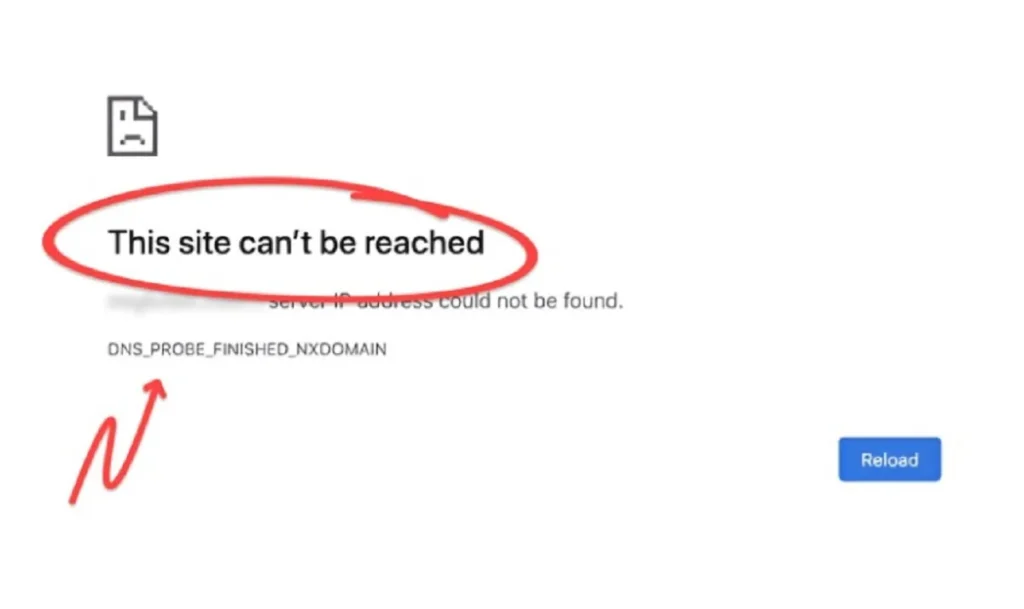
When you enter a website URL, DNS resolves the domain name to an IP address so your browser can reach the correct server. If this process fails, Chrome shows the NXDOMAIN error, which stands for “Non-Existent Domain.”
Your browser shows this error when DNS lookup fails, the cache is outdated, the network settings are incorrect, or the domain is inactive or not registered. It can also happen due to issues with the hosts file, DHCP configuration, or recent network changes.
In most cases, you can fix this by clearing DNS cache, switching to a public DNS like Google or Cloudflare, or correcting your network settings.
Discover: How to Fix Google Not Working Issues
How WPTasks Helps Prevent WordPress Errors?
DNS errors often stem from outdated software, misconfigured settings, or server issues. Without regular checks, these small problems can quickly affect your website’s uptime and traffic.

WPTasks gives you monthly development-hour retainers to fix issues quickly and make technical updates when needed. Alongside this, a monthly maintenance subscription keeps your website stable with regular monitoring and preventive checks, so errors like this don’t return.
You also get hosting support, which helps maintain a reliable server setup and reduces DNS or connection issues over time.
Frustrated with DNS Errors? Let WPTasks Fix it Fast!
Don’t let tech issues slow you down. Our experts resolve DNS problems quickly and reliably.
Common Causes of DNS Probe Finished NXDOMAIN Error
This error code can appear for a variety of reasons, many of which are related to system misconfiguration or network settings. Below are some of the most common causes:
Incorrect DNS Configuration
One of the top culprits is the use of improper or outdated DNS server addresses. You might be using unreliable settings from your internet service provider, or an old entry in your alternate DNS server list may be causing the issue.
You can change this by going into Change Adapter Settings in Windows or System Preferences on macOS, and updating your preferred DNS server or switching to a public DNS server.
Network Connectivity Issues
If your internet router is misbehaving or if there’s a problem with your current local area connection, the DNS request may not go through. A quick router reboot or resetting the network icon settings can often fix this. You may also need to run a few commands from the Start Menu using the Search Bar to renew your DHCP lease or flush the DNS cache.
Misconfigured Chrome Flags or Settings
Sometimes experimental features in Chrome can affect how DNS functions. Resetting Chrome’s flags or settings to default can help resolve any underlying misconfiguration in the browser. You might also want to clear your browser cache just in case.
VPN or Firewall Interference
If you’re using a VPN service or third-party firewall, it may be interfering with your system’s DNS resolution. Try temporarily disabling your VPN or antivirus protection to see if that resolves the issue. Don’t forget to revert the changes afterward.
Domain Doesn’t Exist or is Expired
In rare cases, the website’s domain may not exist, or its registration may have lapsed with the hosting provider. Double-check that you’re typing the right web address in the address bar and not making a typo. You can also try pinging the site from another operating system or device to verify.
By understanding these common causes and how the Domain Name System works, you’ll be better equipped to quickly fix the DNS_Probe_Finished_NXDOMAIN error and get back online.
Explore: How to Fix 400 Bad Request Error
How to Fix DNS_PROBE_FINISHED_NXDOMAIN in Chrome?
Fix the NXDOMAIN error by restarting your network, clearing DNS cache, or updating DNS settings. Most cases are caused by cache issues, DNS misconfiguration, or network instability.

Restart Your Computer and Router
Restart your device and router to reset the network connection and clear temporary glitches. This refresh restores communication between your system, router, and DNS servers. A restart also renews your IP address, clears memory issues, and resets background services. This is often the fastest way to fix temporary DNS failures without bigger changes.
Clear Chrome’s DNS Cache
Chrome stores DNS records to load websites faster, but outdated entries can block access. Clearing the cache forces the browser to fetch fresh domain data from DNS servers. This removes incorrect or expired records that cause lookup failures. After clearing, Chrome reconnects using updated information, which often resolves loading issues instantly.
Reset Chrome Flags To Default
Chrome flags control experimental browser features that can affect DNS behavior. Incorrect settings may disrupt how Chrome resolves domains. Resetting all flags removes unstable configurations and restores default behavior. After restarting the browser, Chrome processes DNS requests more reliably.
Read more: How to Fix the ‘Cookies Are Blocked’ Error in WordPress
Flush DNS Cache (Windows)
Windows stores DNS records locally to speed up browsing, but old entries can cause errors. Flushing the DNS cache clears these records and forces a fresh lookup. This helps your system connect to the correct server using updated DNS data. It is one of the most effective fixes for persistent domain resolution issues.
Change DNS Server Settings
Default DNS servers from your ISP may be slow or unreliable. Switching to a public DNS improves resolution speed and connection stability. Use Google DNS (8.8.8.8) or Cloudflare (1.1.1.1) to handle requests faster. These servers reduce lookup failures and improve overall browsing performance.
Disable VPN Or Antivirus Temporarily
VPNs and antivirus tools can filter or block DNS requests in the background. This can interrupt domain resolution and prevent websites from loading. Disable them temporarily to test if they are causing the issue. If the site loads, adjust settings or whitelist DNS traffic before enabling protection again.
Restart DNS Client Service (Windows Only)
The DNS Client service manages how Windows resolves domain names. If the service becomes unresponsive, DNS lookups may fail. Restarting the service resets DNS handling and clears internal issues. This step helps when the error continues even after clearing the cache or changing settings.
Check Domain Validity
The domain may have expired, be inactive, or have been incorrectly entered in the browser. Even a small typo can cause a lookup to fail. Test the website on another device or network to confirm. If the domain does not load anywhere, the issue is with the website, not your system.
Fix DNS Settings on macOS or Linux
MacOS and Linux systems rely on DNS caching and server settings similar to those in Windows. Incorrect configurations can block domain resolution. Clear DNS cache, update DNS servers, and restart the network connection. These steps help restore proper lookup behavior and fix most DNS-related errors.
Also Know: How to Fix HTTP 429 Too Many Requests Error
Conclusion
DNS_PROBE_FINISHED_NXDOMAIN is a common browser error that usually points to DNS lookup failure, incorrect settings, or an inactive domain. While the error looks technical, most cases come down to simple issues like cache, network glitches, or DNS misconfiguration.
Start with basic fixes like restarting your router, clearing DNS cache, and switching to a reliable DNS server. If the problem continues, check system settings or verify whether the domain is active. Fixing these issues early helps prevent downtime, protect the user experience, and keep your website accessible without interruptions.
FAQs About DNS Error
What does the NXDOMAIN error mean in Chrome?
The NXDOMAIN error means the browser cannot match a website name to its correct server address. When the domain lookup fails, the browser cannot load the page.
Why does the DNS error happen?
The DNS error happens when the domain lookup fails due to incorrect DNS settings, an outdated cache, an unstable network, or an inactive domain.
What is the fastest way to fix the DNS problem?
Restart the router and device, clear DNS cache, and switch to a public DNS like Google or Cloudflare. These steps quickly fix most DNS-related loading issues.
How can you tell if the problem is on your system or on the website?
Open the website on another device or network. If the site does not load anywhere, the domain may be inactive. If other sites work normally, the issue is local.
Can VPN or antivirus tools block access to domains?
VPN and antivirus tools can block or reroute DNS requests, preventing websites from loading. Disabling them temporarily helps confirm the cause.
Does clearing the DNS cache fix domain loading issues?
Clearing the DNS cache removes outdated records and forces the system to fetch updated domain data. This often resolves lookup-related errors.