

When your website suddenly shows “Error 522: Connection Timed Out”, it can feel frustrating, especially if you’re not sure what it means or how to fix it. This Cloudflare error is quite common and usually points to a problem between Cloudflare and your web server.
In this guide, we’ll explain what Cloudflare Error 522 means, why it happens, and how you can fix and prevent it. We’ll also share some easy-to-follow troubleshooting steps and best practices to keep your WordPress website running smoothly.
What is Cloudflare Error 522: Connection Timed Out?
Cloudflare Error 522 is an HTTP status code indicating that Cloudflare was unable to connect to your website’s origin server within the allotted time.
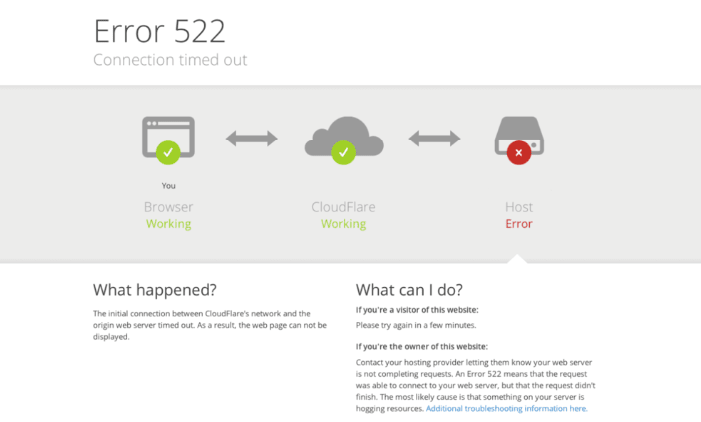
When a visitor opens your website, Cloudflare acts as a middle layer, routing the request through its network to your hosting server. If your web server doesn’t respond quickly enough, Cloudflare displays Error 522 to the visitor.
Simply put, this error says: “Cloudflare tried to reach your website’s server, but it didn’t respond fast enough.”
Error 522 not only frustrates visitors but can also affect your website’s SEO, uptime, and credibility. So understanding the causes and how to fix them is key.
Get Emergency WordPress Help Now
Our expert team provides fast, reliable support to resolve WordPress issues swiftly and securely. Contact us immediately to restore your site.
The Common Causes of Error Code 522
There are several reasons why this timeout occurs. Let’s look at the most common causes:
Overloaded or Slow Origin Server: If your server is handling too many requests or running low on resources, it may fail to respond to Cloudflare in time.
- High CPU usage
- Low memory availability
- Poor server configuration
These factors can all lead to slow response times.
Firewall Blocking Cloudflare IPs: Sometimes, your server’s firewall or security software mistakenly blocks Cloudflare’s IP ranges. When that happens, Cloudflare’s requests can’t reach your server, causing a timeout.
Incorrect DNS Settings: If your DNS records in Cloudflare are not pointing to the correct server IP, Cloudflare won’t be able to find or connect to your origin server.
Server Downtime: When your hosting server is temporarily offline, Cloudflare can’t connect to it, which triggers Error 522.
Poor Network Connectivity: If there’s a network issue between Cloudflare and your server (for example, routing problems or packet loss), the connection can time out.
Quick Strategies to: Fix 400 Bad Request Error
How to Fix Cloudflare Error Code 522?
The good news is, you can fix Error 522 by following a few simple steps. Let’s go through them one by one.
Check Your DNS Settings
DNS issues are one of the most common causes behind Cloudflare Error 522. When your DNS records are misconfigured, Cloudflare cannot properly connect to your server. Thankfully, checking and correcting DNS settings is simple.
- Step 1: Start by signing in to your Cloudflare dashboard using your account credentials.
- Step 2: Once inside, navigate to the DNS tab to view all your domain records.
- Step 3: Next, check that your A or AAAA records are pointing to the correct IP address of your origin server. Any outdated or incorrect IPs should be removed or updated.
- Step 4: If you’ve recently switched hosting providers or servers, make sure your DNS records reflect the new IP address. Otherwise, Cloudflare will still try to connect to your old server.
Tip: Use tools like DNS Checker or WhatsMyDNS.net to confirm DNS propagation. This helps ensure your records are resolving correctly across the globe.
Configure Cloudflare DNS Settings Correctly
Even if your DNS records are correct, improper Cloudflare configuration can still trigger Error 522. That’s why it’s essential to double-check your Cloudflare DNS setup.
- Point to the Right IP Address: Ensure your A record points to your public IP address, not a private one, such as 192.168.x.x. Private IPs cannot be reached by Cloudflare.
- Enable Proxy Status: Your DNS entries should have the Proxy status enabled (indicated by an orange cloud icon). This enables Cloudflare to handle and protect your site’s traffic.
- Check IPv6 Records: If your site uses IPv6, verify that your AAAA record contains the correct address. An incorrect entry can lead to connectivity issues.
- Get Hosting Help if Needed: For complex hosting setups or custom configurations, reach out to your hosting provider. They can confirm whether your DNS entries match the correct IP structure.
These quick checks ensure Cloudflare communicates efficiently with your origin server, often resolving Error 522 immediately.
Optimize Server Performance
Sometimes, Error 522 occurs because your web server is simply too slow or overloaded to respond to Cloudflare in a timely manner. Optimizing performance helps prevent timeouts and keeps your site running smoothly.
- Monitor Resource Usage: Regularly check your CPU, RAM, and disk space through your hosting control panel. If any of these are maxed out, your server may struggle to respond to requests promptly.
- Reduce Unnecessary Load: Disable unused plugins, scripts, or background tasks that consume excessive resources. This reduces processing strain on your server.
- Upgrade Hosting if Necessary: If your website is experiencing growth or high traffic, consider upgrading from shared hosting to VPS or dedicated hosting. More resources mean better performance and fewer timeouts.
- Enable KeepAlive: Activate KeepAlive on your server. This setting maintains persistent connections between Cloudflare and your server, improving efficiency and response times.
Pro Tip: Use tools like GTmetrix, Pingdom, or your hosting performance monitor to track load times and identify bottlenecks.
Check Firewall and IP Filtering Settings
A common cause of Cloudflare Error 522 is a firewall mistakenly blocking Cloudflare’s IP ranges. When Cloudflare’s requests are denied, the connection times out. To resolve this:
- Whitelist Cloudflare IPs: Add all official Cloudflare IP ranges to your firewall or security plugin whitelist. This ensures Cloudflare traffic isn’t blocked.
- Review Hosting Firewall Settings: If you use a hosting control panel, such as cPanel or Plesk, review your firewall or IP Deny Manager settings. Remove any blocked IPs related to Cloudflare.
- Ask the Hosting Provider to Verify: Your hosting support team can check whether any Cloudflare IPs are blocked at the server level. If so, they can unblock them quickly.
You can find the full list of Cloudflare IPs here.
Contact Your Hosting Provider
If you’ve followed the above steps and still see the error, the issue might be deeper, possibly server-side. In that case, contacting your hosting provider is the best move.
- Share Error Details: Provide your hosting team with the error message, timestamp, domain name, and server IP. The more details you share, the faster they can locate the problem.
- Request Resource and Firewall Checks: Ask them to verify if there’s any downtime, resource exhaustion, or firewall restrictions blocking Cloudflare.
In many cases, web hosting support can identify and fix the root cause of Error 522 within minutes.
Troubleshoot Using Cloudflare Tools
Cloudflare offers several built-in tools to help you pinpoint the exact reason behind the connection timeout.
- Check the Dashboard: Visit the Cloudflare dashboard to view detailed error logs and analytics for your domain. These logs can highlight where the timeout occurred.
- Monitor Cloudflare’s Status Page: Before making major changes, visit the Cloudflare Status Page to confirm there are no ongoing system-wide outages or connectivity problems.
- Review Analytics: Utilize the Analytics tab in Cloudflare to identify unusual traffic patterns or spikes that may overload your server.
- Contact Cloudflare Support: If the issue persists, contact Cloudflare Support and provide your Ray ID (displayed on the error page). This helps their team trace your request and diagnose the problem more accurately.
Explore: Ultimate Guide to WordPress Management
How to Prevent Future Cloudflare Error 522 Issues?
Once your website is back online, it’s essential to take proactive measures to ensure the error doesn’t reappear. Preventing Cloudflare Error 522 is much easier than repeatedly fixing it.
By maintaining proper configurations and monitoring performance, you can keep your site stable and responsive.
Keep DNS Settings Updated
Your DNS records play a crucial role in connecting Cloudflare with your hosting server. So, regularly review your Cloudflare DNS settings to confirm they point to the correct and current IP address of your hosting provider.
If you migrate servers or switch hosting plans, update Cloudflare immediately. Outdated DNS entries are one of the most common reasons for recurring connection issues.
Monitor Server Resources
A healthy server ensures a stable connection with Cloudflare. As such, use built-in tools from your hosting provider or third-party monitors like UptimeRobot to track server performance. Set up alerts for high CPU usage or downtime so you can take action quickly. Monitoring helps prevent overloads that could lead to another Error 522.
Use a Reliable Hosting Provider
Your hosting provider has a direct impact on your website’s reliability. Therefore, choose a host with 99.9% uptime, fast response times, and robust infrastructure. Reliable hosting not only prevents connection timeouts but also improves your site’s overall speed and user experience.
Implement a Content Delivery Network (CDN)
While Cloudflare functions as a CDN, combining it with caching tools or optimized configurations can further reduce strain on your origin server. To prevent this, cache static content such as images, CSS, and JavaScript files. This reduces the number of requests reaching your main server and minimizes the chance of overload.
Review Firewall and Security Rules Regularly
Security rules sometimes change automatically after updates or plugin installations. Hence, check your firewall settings and ensure Cloudflare IPs remain whitelisted. If you use platforms like WordPress, review plugins such as Wordfence or Sucuri to make sure legitimate Cloudflare traffic isn’t blocked.
Use Server Optimization Tools
Small optimizations can make a big impact on performance. As such, enable Gzip compression to reduce file sizes, and adopt HTTP/2 or HTTP/3 protocols for faster data transfer.
If you’re using a CMS like WordPress, install a caching plugin like FastPixel, and regularly optimize your databases and scripts. These improvements help your server respond faster and prevent future timeouts.
By following these preventive steps, you can maintain a healthy server environment. Plus, ensure seamless communication with Cloudflare, and keep your website consistently online without facing Error 522 again.
Cloudflare Configuration Best Practices
Proper Cloudflare configuration ensures your website runs efficiently, securely, and with minimal errors. By following best practices, you can optimize performance and minimize the likelihood of encountering connection issues, such as Error 522.
- Enable SSL/TLS Encryption: Always use HTTPS with a valid SSL certificate. This secures data transfer between your users and your website while maintaining trust and SEO benefits. Cloudflare offers free SSL options, making setup easy and reliable.
- Set Proper Cache Levels: For dynamic websites, select the “Standard” cache level. It strikes a balance between performance and flexibility, ensuring that Cloudflare caches only what’s necessary while allowing real-time updates on your site.
- Use Page Rules Wisely: Create Page Rules to control how Cloudflare handles specific pages. For example, cache static pages for speed and bypass Cloudflare for admin or checkout areas. This enhances both performance and functionality.
- Enable Auto Minify: Turn on Auto Minify to compress HTML, CSS, and JavaScript files. Smaller file sizes improve loading speed and user experience without affecting design or content.
- Regularly Update Settings: Cloudflare frequently introduces new optimization and security features. Review your Cloudflare dashboard regularly to update settings and ensure your configuration stays current and efficient.
Conclusion
Cloudflare Error 522: Connection Timed Out is a common but fixable issue. It usually occurs when your origin server fails to respond to Cloudflare’s request within the expected timeframe.
By checking DNS settings, optimizing your server performance, allowing Cloudflare IPs through your firewall, and monitoring your hosting environment, you can quickly resolve this error.
Remember, regular site maintenance and smart configuration also go a long way in keeping your website fast, secure, and always online.
FAQs About Error Code 522
What causes Cloudflare Error 522?
Error 522 occurs when Cloudflare cannot complete a TCP handshake with your origin web server. This is often due to server overload, firewall restrictions, or misconfigured web server settings.
How can I check my DNS configuration?
To ensure your site is accessible, review Cloudflare DNS settings in the DNS settings tab and confirm that each address record is configured correctly.
Why am I seeing connection failures?
Connection failures can happen if Cloudflare’s http requests are blocked by a third party firewall or if the server’s memory usage and server’s CPU are over capacity.
How can I optimize my server to prevent timeouts?
You can reduce server load by monitoring server load and RAM usage, using built-in performance tools, enabling the keepalive header, and caching website files.
How do I whitelist Cloudflare IPs?
Add all Cloudflare IP addresses to your firewall’s whitelist and check IP filtering rules in your Cloudflare control panel to allow safe web traffic.
How do SSL and secure connections affect Cloudflare?
Use a valid SSL certificate issued and verified with an online SSL checker tool to maintain a secure connection and prevent interruptions in Cloudflare proxy traffic.
Can other factors cause this error?
Yes, high traffic spikes, incorrect IP addresses, slow network connections, overloaded server hosting, Apache configuration file issues, or server hosting problems can trigger timeout errors and other Cloudflare errors.


