

Loading a WordPress theme is one of the first steps in setting up a new site. WordPress powers 43% of all websites globally, and your theme shapes everything from page speed to how your brand looks across devices.
There are three ways to do it: install directly from the WordPress theme directory, upload a ZIP file from a premium marketplace, or add the theme manually via FTP. This guide covers all three methods, what to do after installing, and how to fix the most common errors.
To load a WordPress theme, go to Appearance, click Themes, click Add New, find your theme, click Install, then click Activate. For premium themes, click Upload Theme, select your ZIP file, and activate. For manual installs, upload the theme folder to wp-content/themes via FTP and activate from the dashboard.
What is a WordPress Theme?
A WordPress theme determines your WordPress website’s overall design and layout. It’s made up of template files, style sheets, and other components that control how your content appears to visitors.

Some themes support full site editing (FSE), which lets you customize every part of your site, including headers and footers, using the block editor. Others use the classic WordPress Customizer for design changes.
If you’re using a custom theme, it may be built specifically for your brand. These themes are usually not found in the public theme archive or themes page. They are installed via the Upload Theme button using a ZIP file from your designer or a premium marketplace.
Free vs Premium WordPress Themes
There are two main types of themes: free themes and premium (paid) ones. Both come with their own perks and trade-offs.
Free WordPress Themes
Free themes are the go-to option when launching a new WordPress site, especially if you’re on a budget or just getting started. The WordPress theme directory currently hosts over 11,000 free themes. ThemeForest alone lists more than 50,000 premium themes across all categories.
These themes are available directly through the official WordPress theme directory and can be installed in just a few clicks from your WordPress administration interface.
Popular free themes like:
- Astra: Astra is lightweight, loads fast, and works seamlessly with popular page builders like Elementor and Beaver Builder. It’s a great choice for beginners and developers alike.
- Neve: Neve is a flexible theme designed for startups and small businesses. It’s responsive, AMP-compatible, and easy to customize, making it perfect for clean, professional websites.
- OceanWP: OceanWP is highly extendable and built with eCommerce in mind. It includes built-in WooCommerce features like quick view and native cart popups.
They often include basic template files, responsive design, and starter customization options right from the site editor.
However, free themes may come with limitations like reduced access to updates, fewer customization tools, and limited theme support.
Since free themes are widely used, sites running the same theme can look similar without significant customization. For bloggers and anyone learning WordPress, free themes are a practical way to get started without upfront cost.
Premium WordPress Themes
Premium or paid WordPress themes take things to the next level. They’re ideal for users who want more control over design, stronger functionality, and dedicated support. These themes are usually sold on third-party theme marketplaces or directly through theme developers.
Some Popular Premium Themes are:
- Avada: The best-selling theme on ThemeForest for over a decade with more than 900,000 sales. Known for its drag-and-drop Fusion Builder, it handles everything from portfolio sites to complex business builds without requiring code.
- Divi: A visual drag-and-drop theme sold as a subscription through Elegant Themes. Divi gives complete design freedom directly on the front end of your site, making it one of the most popular premium theme frameworks available.
- Flatsome: Built specifically for WooCommerce stores, Flatsome includes a live page builder, optimized product page layouts, and real-time customization. It is consistently one of the top-selling WooCommerce themes on ThemeForest.
Premium themes also tend to offer better performance of your website, frequent updates for latest versions, and strong theme’s support which is key if you run into issues or want help customizing your site.
Popular Marketplace for WordPress Themes
When you’re ready to purchase WordPress themes, you have lots of choices:
- SeaTheme: SeaTheme comes with a rich library of starter templates, making it easy to launch professional-looking sites quickly. They offer stunning pre-built layouts, animation effects, and smooth integration with WordPress builders. Whether you want to build a sleek portfolio or a dynamic homepage, they give you the tools you need without needing to code.
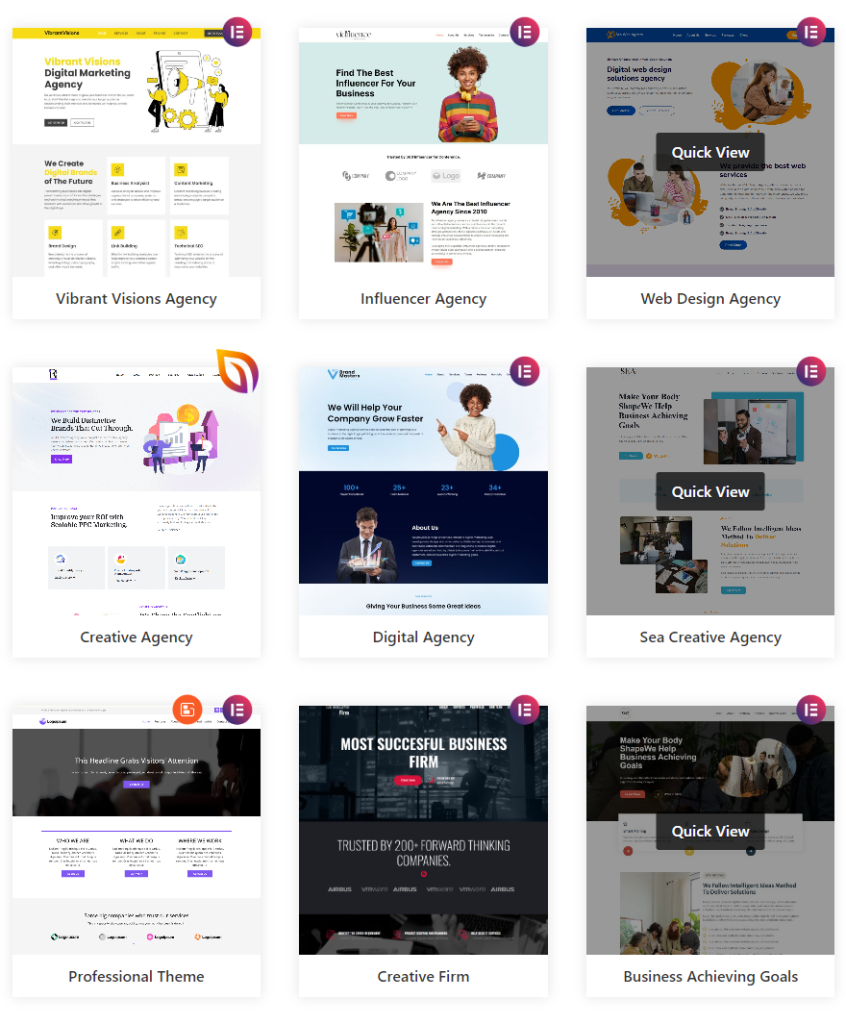
- WordPress.org Theme Directory: Ideal for beginners. Just head to the themes page in your dashboard, use the search bar or Feature Filter to select themes, and install directly. You’ll need a WordPress account to leave reviews or contribute.
- ThemeForest: One of the biggest marketplaces for premium themes. Here you’ll find thousands of popular themes with unique designs. Just purchase and download the installable WordPress file and use the upload method in your dashboard.
Choosing the Right WordPress Theme: Important Factors to Consider
Choosing the right WordPress theme affects your website’s design, speed, user experience, SEO performance, and long-term flexibility. A well-optimized theme helps your website load faster, look professional, and work smoothly across all devices.
Here are the key factors to consider before choosing a WordPress theme.
Design and Branding Alignment
Your theme should match the look and feel of your brand. Whether you are building a blog, an online store, or a portfolio, the theme should reflect your brand identity and support the type of content you publish. Many featured themes, like the Astra theme, offer templates that are clean and modern, with layouts you can tweak to fit your brand perfectly.
Responsiveness and Mobile-Friendliness
People will visit your site from phones, tablets, and desktops, so make sure your active theme looks good and works well on every screen size. Most good themes today are responsive by default, but it’s always a good idea to test them before committing.
Customization Options
You’ll want to personalize your theme without touching any code. Look for options that let you change colors, fonts, layouts, and images easily from the Customizer or site editor. If you’re working with a parent theme, consider creating a sub-theme or child-theme for safe customizations, especially if you’re planning to add unique touches or code tweaks.
Plugin Compatibility
Your theme should be compatible with the plugins you plan to use. Whether it’s contact forms, SEO tools, or eCommerce plugins, your theme must integrate smoothly without breaking any layouts.
Speed and Performance
Themes with excessive scripts, animations, and built-in page builders can significantly slow your site. Choose a lightweight theme that’s optimized for performance. The web host and hosting provider you use also impact speed, so make sure your hosting account supports modern performance features.
SEO-Friendliness
A good theme will follow best practices for search engine optimization. Clean code, fast loading times, and structured layouts help improve your visibility in search results.
Test a theme’s SEO performance by running a demo URL through Google PageSpeed Insights and checking for clean heading structure and schema markup before committing.
Regular Updates and Support
Themes should be updated regularly to stay compatible with the latest version of WordPress. This also helps you access new features and keeps your site secure. Premium themes usually offer better support and frequent updates, but many free themes like Astra are also well-maintained.
Preparing to Load a WordPress Theme
Before you load a new WordPress theme, it’s a good idea to do a little preparation. These steps prevent the most common installation problems before they occur.
- Backup Your Website (if applicable): If you’re switching from an existing theme or working on a live WordPress site, always make a backup first. This includes your content, media, plugins, and database. You can use a backup plugin such as BlogVault or manually back things up through your hosting account or web host.
- Ensure You Have WordPress Admin Access: To install WordPress themes, you’ll need full admin access to your WordPress administration interface. This lets you access the themes page, use the upload theme button, or explore the theme directory.
- Check Theme Compatibility with Your WordPress Version: Not every theme works well with every version of WordPress. Before installing, check that your chosen theme supports the version of WordPress you’re using. Ensure your WordPress core, plugins, and PHP version are updated before installing a new theme. If installing via FTP, confirm the theme folder is correctly structured with a style.css file in the root directory.
Taking these steps before installing a theme helps everything go smoothly, whether you’re loading a free theme, uploading a custom WordPress theme, or testing out a new layout for your business website.
Which Installation Method Should You Use?
There are three ways to load a WordPress theme, and each one suits a different situation. Use this table to pick the right method before you start.
| Method | Best for | Technical level | Theme source |
|---|---|---|---|
| WordPress directory | Free themes, beginners | Beginner | WordPress.org |
| ZIP file upload | Premium or custom themes | Beginner to intermediate | ThemeForest, developer |
| FTP | Large files, dashboard errors | Advanced | Any source |
How to Load a WordPress Theme: Step-by-Step
Loading a WordPress theme is easy once you know where to look. Whether you’re choosing from the theme directory, uploading a custom file, or using FTP, here’s how you can do it in a few different ways.
Method 1: Install a Free Theme From the WordPress Directory
This is the simplest method and great for beginners.
From your WordPress dashboard, go to Appearance ⟶ Themes ⟶ Add New. You’ll land on the themes page, where you can use the search bar or the Feature Filter to narrow down your choices.
You can preview a few options to see how they might look on your site. When you find one you like, click Install, then hit Activate. Your new theme is now live. This method works for any free theme in the WordPress directory.
Method 2: Upload a Premium or Custom Theme via ZIP File
If you’ve downloaded a theme from a third-party marketplace or developer, you’ll usually get a theme ZIP file.
Head to Appearance ⟶ Themes ⟶ Add New, and this time, click the Upload Theme button. Choose your ZIP file, click Install Now, and then Activate it.
This is common for premium themes or a custom theme you’ve designed. Confirm the ZIP file is the correct installable theme file, not the full package which may include documentation or PSD files.
Method 3: Install a Theme Manually via FTP (Advanced)
This method requires FTP access and is most useful when the dashboard upload fails due to file size limits or server restrictions.
Use an FTP client such as FileZilla to connect to your hosting account. Navigate to the /wp-content/themes/ directory and upload the unzipped theme folder there.
Once the upload is complete, go to your WordPress dashboard, visit the Themes section, and activate your new theme. This method is helpful when installing a custom WordPress theme, especially if it’s too large for the browser’s upload limit or if you want to install it manually.
Post WordPress Theme Installation Checklist
Installing and activating the theme is only the first step. Complete these tasks before treating your site as ready. Here’s a simple checklist to help make sure your theme is working perfectly on your site:
Customize Theme Settings
Go to Appearance ⟶ Customize to tweak your site’s look. Adjust the layout, colors, fonts, and logo to match your brand. Many themes also come with their own customizer panels. Review all available settings before making the site live.
Install Recommended Plugins (if prompted)
Some themes may require or suggest certain plugins to unlock full functionality, such as page builders, sliders, or contact forms. You’ll usually get a notification after activation. Click “Begin Installing Plugins” to easily set them up.
Test Responsiveness and Performance
Check how your site looks on different devices (desktop, tablet, and mobile). You can use the preview mode in the customizer or tools like Chrome DevTools. Also, test your site speed using a free tool like PageSpeed Insights to ensure your theme doesn’t slow things down.
Set Up Menus, Widgets, and Homepage Layout
Go to Appearance ⟶ Menus to create and assign your navigation menu. Then, head over to Appearance ⟶ Widgets to organize your sidebar and footer. Don’t forget to set your homepage layout under Settings ⟶ Reading, whether you want a static page or latest posts.
Troubleshooting Common Issues When Installing a WordPress Theme
These are the three most common errors during WordPress theme installation, along with how to fix each one. Here are quick fixes for common issues:

Theme Installation Failed
This usually happens if you’re uploading the wrong file. Make sure you’re using the correct installable theme ZIP file, not the full package (which might include documentation or PSD files). Try re-downloading from the theme source.
Missing style.css Error
WordPress themes must include a style.css file in the root folder. If you get this error, you may have uploaded the wrong folder. Unzip the original file, find the correct theme folder, and upload it again either via the dashboard or via FTP.
Site Crashes or White Screen of Death
A blank site after theme activation usually indicates a PHP error, memory limit issue, or plugin conflict. Access your hosting file manager or connect via FTP, navigate to wp-content/themes, and rename the active theme folder to deactivate it and restore access
How to Switch Back to a Default Theme
If the new theme doesn’t work, go to Appearance ⟶ Themes and activate a default theme like Twenty Twenty-One or Twenty Twenty-Four. This can help you regain access and troubleshoot issues with your previous theme.
Conclusion
Loading a WordPress theme takes less than five minutes when you know which method to use. For free themes, use the directory. For premium or custom themes, use the ZIP upload. For large files or dashboard errors, use FTP.
Back up before switching themes on a live site, test on mobile after activating, and run a speed check before going live. Those three steps cover most of the risk involved in a theme change.
FAQs
What is the difference between installing and activating a WordPress theme?
Installing a theme adds it to your site but does not make it live. Activating applies it so visitors see it. You can have multiple themes installed, but only one active at a time. This lets you test a theme before making it live on your site.
Can installing a new theme break my site?
Yes, in some cases. A new theme can conflict with existing plugins, override custom CSS, or cause layout issues if your content was built around a specific theme structure. Always back up your site before switching themes on a live site and test in a staging environment first.
What is a child theme in WordPress?
A child theme inherits all the design and functionality of a parent theme, but lets you make customizations safely. When the parent theme updates, your changes are preserved in the child theme. Always use a child theme if you plan to modify theme code directly.
Why does my theme show a missing style.css error?
This error appears when you upload the wrong folder. Premium themes often come in a ZIP file containing documentation, PSD files, and the actual installable theme folder. Unzip the original download, locate the folder containing the style.css file, re-zip just that folder, and upload again.


