

You try to log in and the cookies are blocked error in WordPress stops you immediately. The dashboard stays out of reach, and the message gives you no clear direction. Work pauses right there.
The error message “Cookies are blocked or not supported by your browser” means that cookies must be enabled to use WordPress. This error message typically appears when WordPress cannot set the necessary cookies for login, and understanding its context is key to troubleshooting.
At first, this feels alarming. You may assume something broke or a recent change caused damage. In reality, this error usually points to a small configuration or browser-related issue.
Once you identify the cause, the fix is direct. A few focused checks are often enough to restore access and move forward without further disruption.
TL;DR: How to Fix the Cookies Error in WordPress
- The error occurs when WordPress cannot create or read login cookies.
- Most causes involve browser settings, URL mismatches, or caching conflicts.
- Start with simple fixes before changing site settings or files.
- Plugin, SSL, CDN, and hosting configurations often trigger the issue.
- Repeated errors may signal deeper WordPress or server problems.
What the ‘Cookies are Blocked’ Error in WordPress Actually Means?
Cookies help WordPress remember that you are logged in. They sit in your browser and allow WordPress to keep your session active while you use the dashboard.
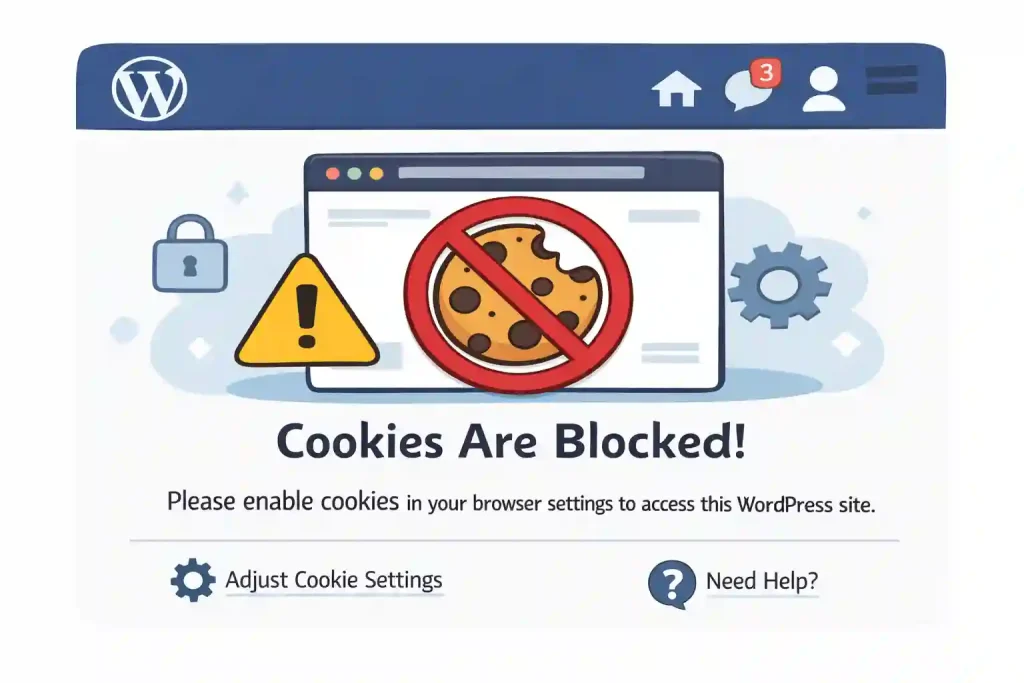
When the cookie issues in WordPress appear, WordPress cannot save or read those cookies. For WordPress to function properly, your browser must support cookies. Even if your login details are correct, the site cannot confirm who you are.
Because of this, WordPress blocks access to wp-admin. This is a safety measure, not a sign that your site is broken or hacked.
Need Help Fixing the Cookies Are Blocked Error in WordPress?
If you are still locked out or the error keeps coming back, WordPress support can help you fix the root cause and keep your login stable.
When and Where Cookies Error Usually Appears?
You most often see this error on the WordPress login page or when trying to access wp-admin directly. In many cases, it appears right after you click the login button.
The issue also shows up after changes to your site. Updates to plugins or themes, changes to your site URL, or switching between HTTP and HTTPS can interfere with cookies.
If the error happens only in specific situations, that helps narrow it down. For example, if it appears after an update or only in one browser, the problem is usually tied to that change rather than the entire site.
The Most Common Reasons Cookies Get Blocked in WordPress
The blocked cookie error in WordPress usually comes from small but critical misalignments between your browser, WordPress settings, and server configuration. These issues often appear after changes, even when the site seems to function normally on the surface.
In most cases, nothing is permanently broken. The error happens because WordPress cannot establish a valid login session, and it blocks access as a precaution. Understanding the common causes helps you narrow down the issue instead of guessing.
Browser-Level Cookie Issues You Might Be Overlooking
Browsers store cookies from previous sessions. Over time, these stored cookies can become outdated or conflict with new login attempts, especially after site changes or migrations.
Browser extensions frequently cause this issue. Privacy extensions, ad blockers, and security tools may restrict cookies or block them entirely, particularly on login pages.
Incognito or private browsing modes handle cookies differently and often block persistent sessions. This can cause WordPress to reject logins even when credentials are correct.
Outdated browsers can also trigger the error. Older versions may not support newer cookie policies or SSL requirements, which affects how login sessions are handled.
WordPress URL and Site Address Mismatches
WordPress depends on exact URL values to create and validate cookies. If the WordPress Address and Site Address do not match precisely, cookies cannot be set correctly.
Common mismatches include differences between HTTP and HTTPS, missing or added “www”, or incorrect domain values after a migration.
These mismatches do not always produce visible warnings. Instead, WordPress continues to reject login attempts because the cookie domain does not match the expected URL.
This is one of the most frequent causes of the cookies error.
HTTPS and SSL Configuration Problems
Cookies are sensitive to protocol and security rules. If your site uses HTTPS but still loads parts of the site over HTTP, browsers may refuse cookies.
This often happens after enabling SSL, switching hosts, or adding a CDN. Mixed protocol setups create inconsistencies that prevent cookies from being accepted.
In some cases, SSL is installed but not fully enforced. Without proper redirects, WordPress attempts to set cookies on different protocols, which leads to rejection.
Once HTTPS is enforced across the entire site, cookie-related login issues usually resolve.
Plugin and Theme Conflicts That Break Cookies
Certain plugins interact directly with authentication and session handling. Security plugins, caching plugins, login limiters, and performance tools are common sources of conflict.
Caching login pages or wp-admin can interfere with cookies. Aggressive caching rules may serve stale sessions instead of allowing WordPress to create new ones.
Themes can also cause issues if they output content too early or include custom login logic. Even small output errors can break cookie headers.
If the cookies error in WordPress appears after installing or updating a plugin or theme, that change should be reviewed first.
Quick Fixes You Should Try First (Before Touching Code)
Start with simple fixes before making any technical changes. In many cases, the error in WordPress is caused by browser-related issues.
Test one fix at a time so you know exactly what resolves the problem.
- Clear Cookies and Site Data: Old or corrupted cookies can block new login sessions. Clear cookies and cached data for your WordPress domain, close the browser fully, then try logging in again. Also, make sure to enable cookies in your browser to prevent blocked cookies and ensure WordPress is working properly.
- Switch to a Different Browser: Testing in another browser helps isolate the issue. If the login works elsewhere, the problem is likely tied to your original browser settings or data.
- Disable Browser Extensions Temporarily: Privacy tools, ad blockers, and security extensions often interfere with cookies. Turn off extensions one by one and test the login after each change.
- Reload the Login Page Properly: Avoid bookmarked login URLs. Open the full login page directly and force a fresh reload to prevent cached sessions from interfering.
If one of these fixes works, you can stop there. If the error continues, the cause is likely inside WordPress or at the server level.
How to Fix the Cookies are Blocked Error Inside WordPress Settings?
WordPress relies on exact URL values to create login cookies. If these settings are slightly off, your WordPress website cannot keep you logged in. These troubleshooting steps apply to any WordPress website, and it’s essential that your website settings are configured correctly for cookies to function.
Start here before trying deeper fixes. URL mismatches are one of the most common causes of this issue. Additionally, editing the wp-config.php file can sometimes resolve the cookies issue. You can access the wp-config.php file via FTP or a file manager plugin to make necessary changes to your website’s configuration.
Step 1: Open the WordPress Address and Site Address Settings
Go to your WordPress dashboard, then open Settings and select General. Find the WordPress Address (URL) and Site Address (URL) fields.
Step 2: Check That Both URLs Match Exactly
Confirm both URLs use the same format. They must match on HTTPS vs HTTP, include or exclude www the same way, and avoid extra slashes or spaces.
Step 3: Fix Any Small Differences
Even a single character difference can break login cookies. A mismatch changes the cookie domain or protocol, which can block the session.
Step 4: Save and Test Your Login Again
Click Save Changes. Close your browser, reopen it, and try logging in again to confirm the cookies are blocked error is gone.
How to Fix the Error If You’re Locked Out of WordPress Admin?
When this error blocks access to wp-admin, you cannot fix it from the dashboard. That situation feels stressful, but it is still recoverable.
You can resolve the issue safely using server access without changing site content or losing data. Use your hosting control panel or contact your web host to access your site files. You can also deactivate plugins without accessing the admin area by renaming the plugins folder via FTP.
Step 1: Access Your Site Using FTP or File Manager
Log in to your hosting account and open the file manager, or connect using an FTP client. This gives you direct access to your WordPress files even when the admin area is unavailable.
Once connected, locate the root folder where WordPress is installed. You should see folders like wp-content, wp-admin, and wp-includes. Enabling debug mode in WordPress can generate a log file (such as debug.log) in the wp-content folder, which records errors and warnings to help you identify the cause of the cookies are blocked error.
Step 2: Temporarily Disable All Plugins
Open the WP-content folder and find the plugins directory. Rename the plugins folder to something like plugins-disabled.
This action disables all plugins at once without deleting anything. If a plugin caused the cookies error, this step often restores access immediately.
Step 3: Test Login and Identify the Problem Plugin
Try logging in again after disabling plugins. If access is restored and the error disappears, you have identified the source of the problem as a plugin conflict.
Rename the folder back to plugins, then re-enable plugins one by one from the dashboard. Test the login after each activation to find the exact cause.
Step 4: Leave the Site in a Stable State
Once you identify the plugin causing the issue, keep it disabled until it is updated or replaced. Avoid reactivating it until you confirm it no longer affects login cookies.
You can regain full access without resetting WordPress or touching the database. This process is safe, controlled, and commonly used during recovery.
Fixing Cookies Issues Caused by Hosting or Server Settings
Not all cookie issues come from WordPress itself. In some cases, the hosting environment affects how login cookies are created or stored. Cookie functionality can be impacted by server settings, such as caching plugins or Nginx configurations, which may inadvertently interfere with setting cookies and cause login problems.
Server-level caching, security rules, or firewalls can interfere with authentication. Security plugins, while protecting a site from attacks, can also block cookie functionality and lead to errors. When browser and WordPress settings look correct, hosting configuration is often the next place to check.
Server-Level Caching and Login Cookies
Some hosts use aggressive caching to improve performance. If login pages or wp-admin are cached, WordPress cannot generate fresh cookies.
Caching should never apply to login or admin areas. Ask your host to confirm that wp-login.php and wp-admin are excluded from caching.
Security Rules and Firewalls Blocking Cookies
Server firewalls and security tools sometimes flag login cookies as suspicious. This can happen after repeated login attempts or plugin changes.
If cookies are blocked without a clear reason, request a firewall log review. Ask whether any rules are blocking authentication or session cookies.
Hosting Environment and PHP Configuration
Incorrect PHP settings or outdated server software can also affect cookie handling. Session-related settings must align with WordPress requirements.
Confirm that your hosting environment supports the WordPress version you are running and that session handling is configured correctly.
When to Contact Hosting Support?
If you have ruled out browser and WordPress settings, contact your hosting provider. Explain that you are seeing the cookies are blocked error and cannot maintain login sessions.
Ask support to check caching exclusions, firewall rules, and server-level security affecting cookies. Clear communication helps support teams identify and resolve the issue faster.
How SSL, CDN, and Cache Layers Affect WordPress Cookies?
SSL, CDN, and caching layers can block WordPress cookies without obvious errors. These systems sit between the browser and the server and can interfere with login requests.
CDNs and aggressive caching often store login pages. When wp-login or wp-admin is cached, WordPress cannot create fresh login cookies, which causes session failures.
SSL issues also trigger this error. If parts of the site load over HTTP while others use HTTPS, browsers may reject cookies for security reasons.
Login pages must bypass caching and use a consistent SSL setup. Once these conflicts are fixed, cookie-related login issues usually stop.
How to Prevent the Cookies are Blocked Error From Happening Again?
Once the issue is fixed, the next step is making sure it does not return. Preventing WordPress errors, such as the unexpected output error, is key to maintaining site stability. Most cookie errors can be avoided with a few consistent practices.
Using a code snippet manager can help manage custom code and prevent errors in WordPress. Prevention comes down to controlled changes, clean configurations, and routine checks.
Follow Safe Plugin Practices
Install plugins only when they solve a clear need. Avoid overlapping plugins that handle security, caching, or login behavior at the same time.
Keep plugins updated and remove unused ones. Outdated or abandoned plugins are a common source of cookie and login issues.
Test Changes Before Going Live
Any change can affect login behavior. Plugin updates, theme changes, SSL updates, or caching rules should be tested before applying them to a live site.
If possible, use a staging environment. Testing changes first helps catch cookie-related issues before they block admin access.
Keep WordPress Core and URLs Consistent
Always keep WordPress core updated to the latest stable version. Core updates include fixes that affect session handling and security.
Make sure your WordPress Address and Site Address stay consistent. Avoid switching between HTTP and HTTPS or changing domains without updating these settings properly.
Consistency reduces the chances of cookie mismatches and prevents login errors from resurfacing.
When is an Error a Symptom of a Bigger WordPress Issue?
If the error keeps returning after multiple fixes, it may point to a deeper problem. Repeated failures usually mean the issue is not limited to the browser or basic settings.
In some cases, database corruption can affect session handling. Broken output in theme or plugin files can also interfere with cookie headers and prevent logins.
Misconfigured core files or server-level errors are another cause. These issues often appear after failed updates, manual file edits, or incomplete migrations. To eradicate the error, you should paste the following code at the bottom of the wp-config.php file, just before the ‘stop editing’ comment. Additionally, you can edit the functions.php file to add custom code that ensures proper cookie handling.
When fixes stop working or the site becomes unstable, it is time to pause DIY troubleshooting. At that point, expert support helps prevent data loss and further disruption.
Conclusion
The blocked cookies error in WordPress is disruptive, but it is rarely serious. In most cases, it comes from small misconfigurations related to browsers, URLs, plugins, caching, or server settings.
By starting with simple checks and moving step by step, you can usually restore access without touching code or resetting your site. Understanding where the issue comes from also helps prevent it from happening again.
When the error keeps returning despite multiple fixes, it is a sign to pause and get expert help. Addressing deeper issues early protects your site from further instability.
FAQs About Cookies Error in WordPress
What causes the cookies are blocked error?
The error occurs when WordPress cannot create or read login cookies. Common causes include browser cookie issues, URL mismatches, caching conflicts, plugin behavior, or SSL misconfiguration.
Can browser extensions cause this error?
Yes. Privacy tools, ad blockers, and security extensions can block or restrict cookies, which prevents WordPress from maintaining a login session.
Does this error mean my WordPress site is hacked?
No. In most cases, the error is caused by configuration or compatibility issues, not a security breach.
Why does the error appear only on certain browsers?
Different browsers handle cookies, cache, and extensions differently. If the error appears in one browser only, the issue is usually browser-related.
Can hosting or server settings block WordPress cookies?
Yes. Server-level caching, firewalls, or security rules can interfere with login cookies, especially if wp-admin or login pages are cached.
When should I stop troubleshooting and seek expert help?
If the error keeps returning after basic fixes or is linked to deeper issues like file corruption or failed updates, expert support helps avoid further damage.


