

WordPress speed testing matters because performance affects both rankings and user experience. When your site loads slowly, users leave faster and search engines notice. Speed is no longer optional if you want visibility and steady traffic.
Performance testing tools help you uncover problems you cannot see from the front end. They reveal slow scripts, heavy images, plugin issues, and server delays that quietly hurt your site’s performance.
This guide helps you choose the best WordPress site speed and performance testing tools and shows how to use them quickly. You will know what to test, which tools to trust, and where to focus your efforts without wasting time.
What to Look for in WordPress Speed and Performance Testing Tools?
When choosing a WordPress speed and performance testing tool, focus on features that provide clear data and practical insight rather than complex reports.
- Accuracy of Speed Metrics: The tool should report reliable load time, interaction, and layout stability data, and provide a clear performance score. Consistent results help you identify real issues instead of false alarms.
- Core Web Vitals Support: Look for tools that measure LCP, CLS, and INP. These metrics reflect real user experience and influence search rankings.
- WordPress-Specific Insights: Tools should highlight issues caused by themes, plugins, scripts, and images. This makes it easier to identify WordPress-related performance problems.
- Ease of Use and Actionable Reports: Clear dashboards and simple explanations save time. The best tools provide actionable performance insights, pointing you toward fixes instead of overwhelming you with technical data.
- Detailed Performance Reports: Choose tools that generate comprehensive performance reports to help identify bottlenecks, track improvements, and recommend specific optimizations.
- Track Performance Over Time: It’s important to use tools that allow you to track performance over time, so you can monitor improvements, spot recurring issues, and maintain optimal site speed and user experience.
Improve Your WordPress Site Speed and Performance
Fix slow load times, Core Web Vitals issues, and performance bottlenecks with expert WordPress speed optimization services.
Best WordPress Site Speed and Performance Testing Tools
These performance and optimization tools cover different layers of WordPress performance, from front-end loading speed to backend processing and real user experience. Using more than one tool is essential for performance optimization and improving core web vitals, providing a clearer picture than relying on a single score.
Seahawk Website Speed Test
The Seahawk Website Speed Test evaluates your WordPress site’s loading performance by measuring key speed metrics like load time, total page size, and request count. It provides a real-world look at how quickly pages render for visitors, identifying slow-loading elements that affect user experience.
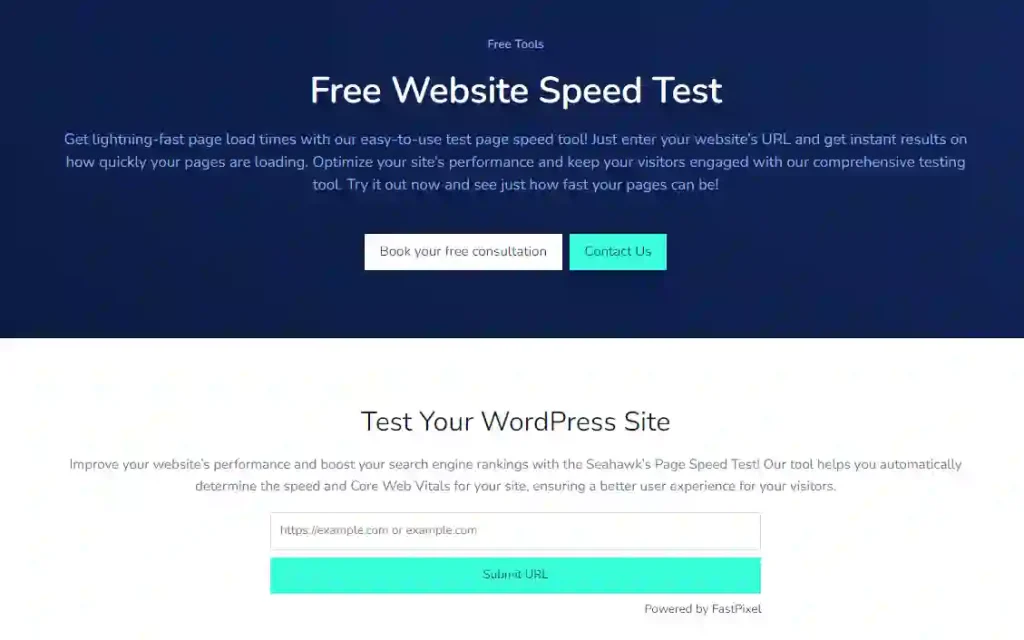
This tool helps you compare performance across different URLs, spot bottlenecks, and prioritize fixes without technical complexity. It’s especially useful for quick diagnostics and ongoing monitoring of speed improvements.
Google PageSpeed Insights
Google PageSpeed Insights shows how Google evaluates your WordPress site for performance and experience. It combines lab data with real user data collected from Chrome users, which makes it especially relevant for SEO.
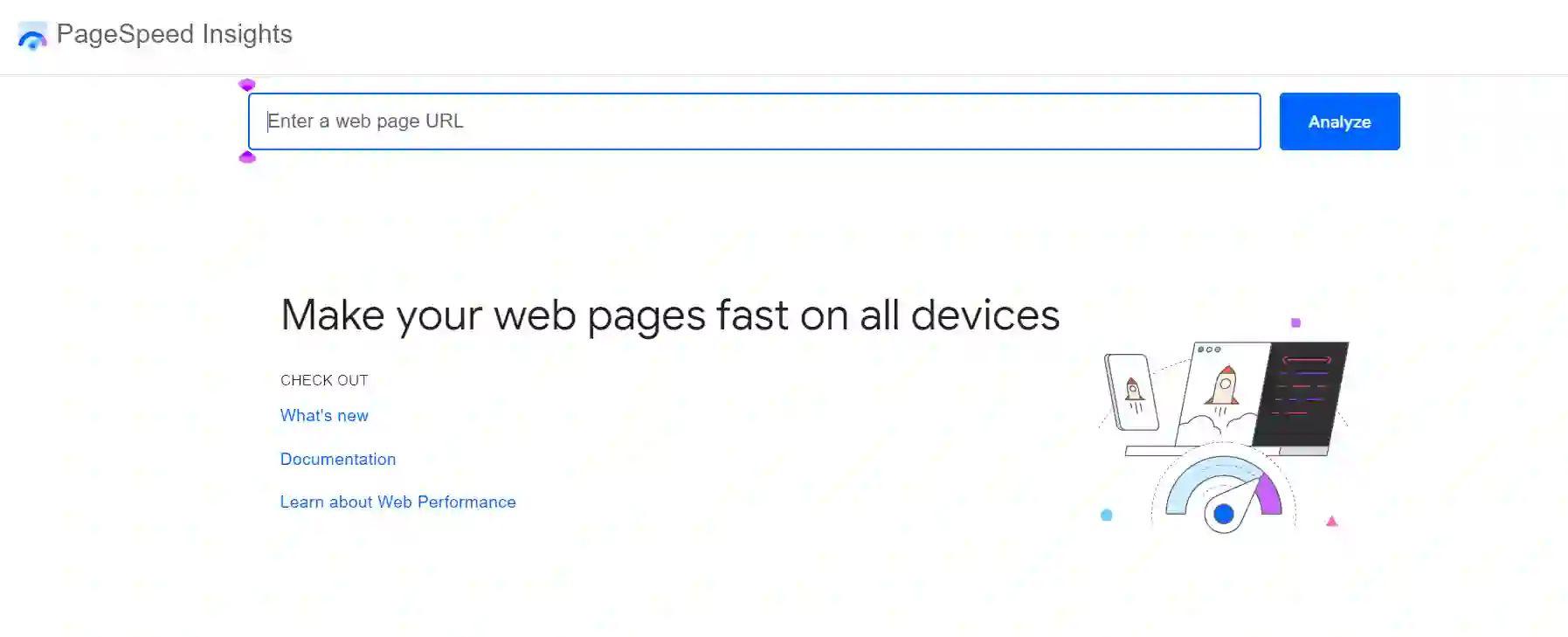
The tool focuses heavily on Core Web Vitals, including LCP, CLS, and INP. It also highlights issues such as unused JavaScript, render-blocking resources, slow server response, and unoptimized images. PageSpeed Insights is best used to understand ranking-related performance issues and to prioritize fixes that align with Google’s expectations.
GTmetrix
GTmetrix breaks down how your WordPress page loads from start to finish. It reports total load time, page size, request count, and overall performance scores in a clear format.
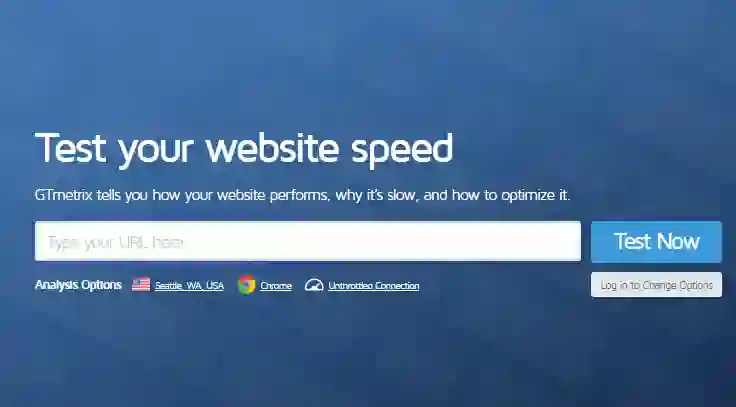
The waterfall chart is where GTmetrix adds the most value. It shows exactly which files load first, which ones block rendering, and how long each request takes. This helps you identify heavy plugins, third-party scripts, large images, and slow fonts that impact speed. GTmetrix is useful when you want practical insight into what slows a page down.
WebPageTest
WebPageTest is designed for detailed performance testing under different conditions. It allows you to test from multiple locations, browsers, and connection speeds, which helps simulate how real users experience your site globally.
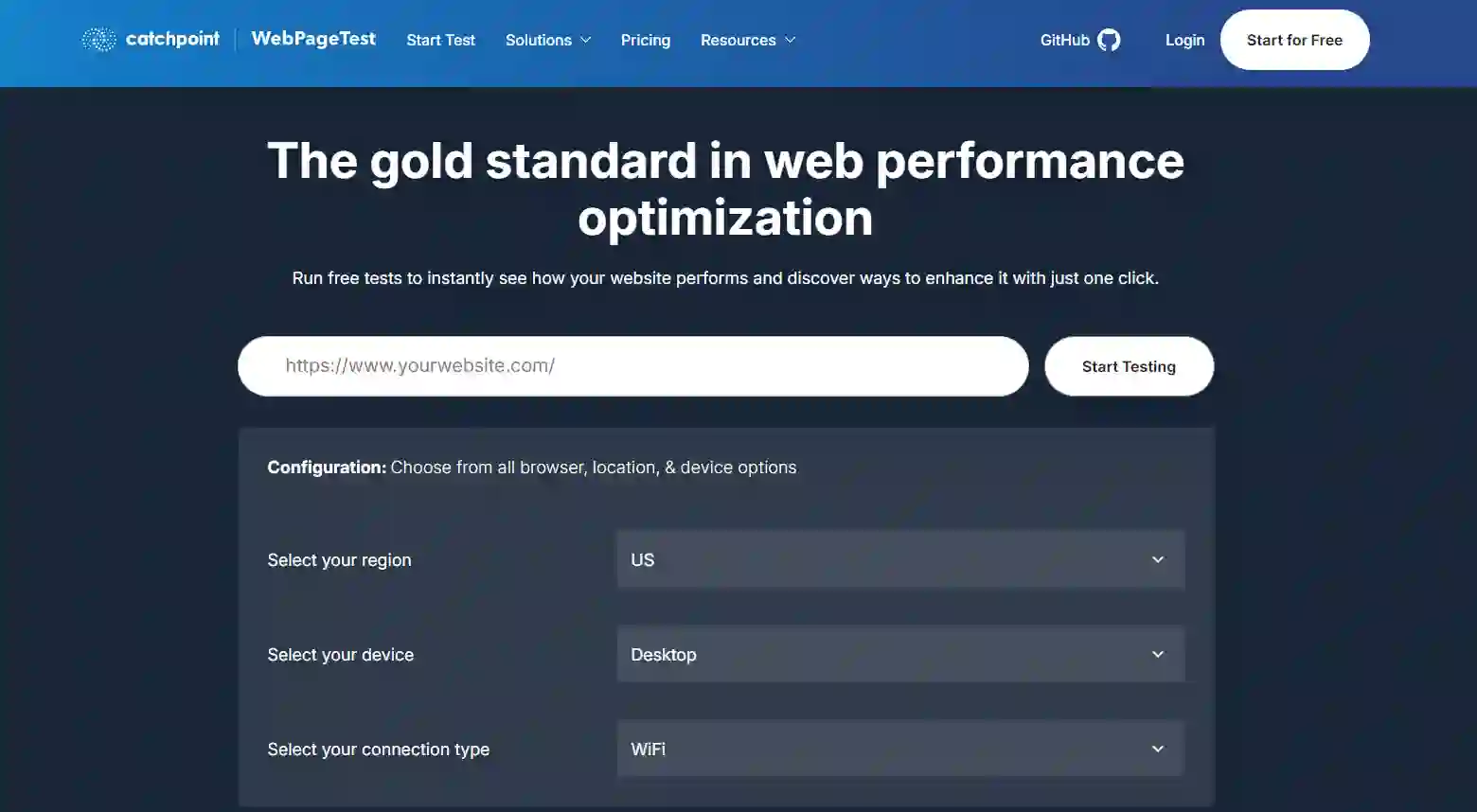
This tool provides advanced metrics such as Time to First Byte, start render time, and speed index. It is especially helpful for diagnosing server-side delays, CDN effectiveness, and hosting-related performance issues. WebPageTest works best when you need deeper analysis beyond basic speed scores.
Pingdom Website Speed Test
Pingdom Website Speed Test is useful for quick performance snapshots and allows you to select test locations from various global servers. It shows load time, file sizes, and request counts in a simple layout that is easy to interpret.
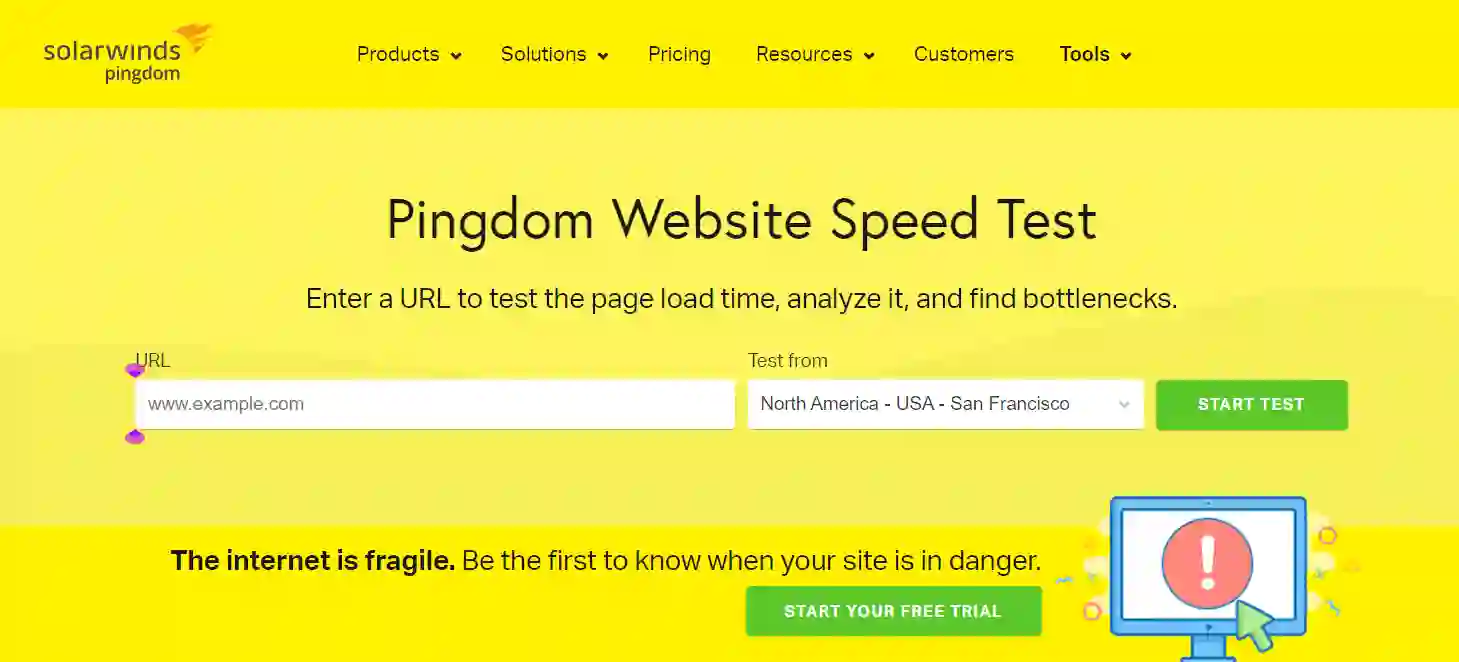
Pingdom Tools enables simple, fast testing from various global servers, focusing on uptime and basic performance. While it does not provide deep technical analysis, Pingdom is helpful for routine checks and baseline monitoring. It allows you to quickly confirm whether performance has improved or declined after changes. Pingdom works well as a lightweight tool for regular speed checks.
Google Search Console (Core Web Vitals Report)
The Core Web Vitals report in Google Search Console shows how real users experience your site over time. Instead of testing individual pages, it groups URLs by performance status and issue type.

This tool helps you identify patterns rather than one-off issues. It is useful for tracking improvements, monitoring long-term trends, and understanding which pages fail Google’s experience thresholds. Search Console plays an important role in ongoing performance monitoring.
Query Monitor
Query Monitor focuses on what happens inside WordPress while pages load. It reveals slow database queries, PHP warnings, REST API calls, and plugin or theme conflicts.
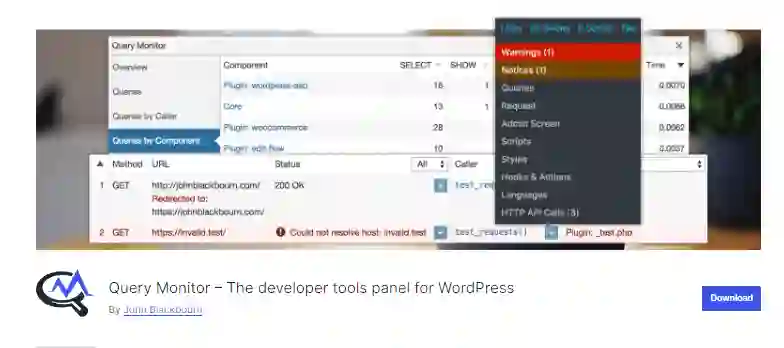
This tool is valuable when front-end speed tests look fine but the site still feels slow. Query Monitor helps pinpoint backend issues caused by poorly optimized plugins, inefficient queries, or custom code. It is especially useful for diagnosing problems that do not appear in browser-based tests.
New Relic
New Relic provides deep performance monitoring at the server and application level. It tracks PHP execution time, database performance, server response time, and resource usage in real time.
This tool is best suited for large or high-traffic WordPress sites where hosting performance plays a critical role. New Relic helps identify bottlenecks that basic speed tools cannot detect, such as slow database queries or server resource limits. It is ideal for advanced performance troubleshooting.
Core Metrics You Should Track When Testing WordPress Speed
Tracking the right performance metrics and performance data is essential for understanding your site’s performance and user experience. By monitoring how your WordPress site loads, responds, and functions for real users, you gain valuable insights into areas that need improvement. These metrics focus on loading speed, stability, and responsiveness, all of which directly affect user experience and search visibility.
Largest Contentful Paint (LCP)
LCP measures how long it takes for the main content on a page to load. A slow LCP often points to large images, slow server response, or render-blocking scripts. Improving LCP helps pages appear usable faster and supports better Core Web Vitals scores.
Cumulative Layout Shift (CLS)
CLS tracks how much a page layout shifts while loading. Unexpected movement usually comes from images without dimensions, ads, or dynamic content. Lower CLS improves visual stability and reduces frustration for users interacting with the page.
Interaction to Next Paint (INP)
INP measures how quickly a page responds to user interactions such as clicks or taps. High INP values often result from heavy JavaScript or slow scripts. Improving INP helps make your site feel responsive and smooth during interaction.
Time to First Byte (TTFB)
TTFB measures how long the server takes to respond to a request. Slow TTFB often indicates hosting issues, lack of caching, or backend delays. Faster TTFB improves overall load time and helps other performance metrics improve.
Total Page Size and Requests
The number of HTTP requests directly affects how quickly a page loads. Total page size and request count are key factors in site speed, large files and too many HTTP requests increase load time. Reducing image size, scripts, and unnecessary resources helps improve speed across all devices.
How to Test WordPress Performance the Right Way?
Testing WordPress performance only works when you follow a consistent approach. Small testing mistakes often lead to wrong conclusions and wasted optimization effort. The goal is to see how your site actually behaves for real users, not just generate a score.

Make sure your testing reflects real world performance by using tools and metrics that measure actual visitor data, not just lab simulations.
- Test more than just the homepage. Internal pages like blog posts, service pages, and product pages often load more scripts and media and reveal deeper speed issues.
- Test performance on both mobile and desktop platforms. Most tools provide separate scores for each, helping you identify platform-specific issues. Mobile devices and slower networks expose problems that desktop testing usually hides, and mobile experience impacts rankings more.
- Test pages with and without caching. Cached results show repeat-visitor performance, while uncached results reflect first-time user experience.
- Run multiple tests at different times. Server load and traffic change throughout the day, so repeated tests give more accurate and reliable data.
- Use different testing environments such as local, staging, and production to safely evaluate changes before pushing them live. This helps catch issues early and ensures your optimizations work in real-world scenarios.
Common WordPress Speed Issues These Tools Reveal
These performance tools consistently surface the same speed problems on WordPress sites. Each issue affects load time, user experience, and rankings.
- Heavy Images: Large images without image compression or proper sizing increase page weight. Implementing image optimization, such as lazy loading and using an image CDN, is essential for improving load times and Core Web Vitals, especially on mobile connections.
- Too Many Plugins: Every plugin adds scripts, styles, or database queries. Too many plugins increase load time and raise the risk of performance conflicts.
- Render-Blocking Scripts: JavaScript and CSS files that load before visible content delay rendering. Optimizing load times is crucial for user experience, as render-blocking resources cause slow first paint and poor perceived speed.
- Poor Hosting Performance: Slow servers increase Time to First Byte. Even optimized sites perform poorly when hosting resources are limited or overloaded.
- Missing Caching or CDN: Without caching or a CDN, WordPress rebuilds pages on each request. Caching stores pre-rendered versions of your pages, allowing them to load much faster. Browser caching and leveraging browser caching are also important, as they store static resources in users’ browsers and improve repeat-visitor load times. This slows delivery and strains the server during traffic spikes.
- Heavy Themes: Using a lightweight, performance-focused theme can significantly improve load speed and overall site performance.
How Often Should You Test WordPress Site Speed?
Speed testing works best when it follows a regular schedule, and continuous monitoring is crucial for maintaining optimal site speed and catching issues early. Ongoing performance monitoring allows you to track performance over time, identify trends, and address problems before they impact users.
Testing too rarely lets issues pile up, while testing without a plan wastes time. The right frequency depends on how often your site changes and how critical performance is to your goals.
- Audit Frequency for Small Sites: Small blogs and low-traffic sites should test speed every three to four months. This cadence helps catch gradual slowdowns from new content, images, or plugins without over-monitoring.
- When to Test After Updates or Migrations: Always test speed after theme changes, major plugin updates, hosting migrations, or redesigns. These changes often introduce performance issues that are not immediately visible.
- Testing Schedule for Business and WooCommerce Sites: Business websites and WooCommerce stores should test speed monthly. Frequent updates, traffic spikes, and third-party integrations make regular testing and continuous monitoring necessary to protect conversions and user experience.
Conclusion
Regular speed testing is essential to improve WordPress site speed and maintain your WordPress site’s performance. It keeps WordPress sites competitive by preventing slowdowns that affect rankings and user experience. Small performance issues grow over time if they are not identified early.
The right testing tools help you optimize your website’s performance before issues impact visitors. They surface problems related to images, scripts, plugins, and hosting. Each tool plays a role, from quick front-end checks to deeper backend analysis.
Choose tools based on your site’s size, traffic level, and technical needs. Consistent testing, paired with the right tools, is the most reliable way to keep WordPress fast and stable.
FAQs About WordPress Speed and Performance Testing Tools
What is the best WordPress speed testing tool?
There is no single best tool for every site. Google PageSpeed Insights is useful for Core Web Vitals and SEO-related performance, while GTmetrix and WebPageTest provide deeper insights into page load behavior. Using more than one tool gives the most accurate view of WordPress performance.
Which tool shows Core Web Vitals for WordPress?
Google PageSpeed Insights and Google Search Console show Core Web Vitals. PageSpeed Insights reports both lab and real-user data, while Search Console tracks real-user performance across your site over time.
How accurate are WordPress speed testing tools?
Speed testing tools provide reliable indicators, but results vary due to server load, location, and caching. Running multiple tests at different times helps produce more accurate and consistent results.
Can plugins slow down WordPress performance?
Yes, plugins can affect speed. Poorly coded or unnecessary plugins add scripts, styles, and database queries that increase load time and reduce performance.
How often should WordPress speed be tested?
Small sites should test speed every few months, while business and WooCommerce sites should test monthly or after major updates. Regular testing helps catch issues early.
Do speed testing tools affect SEO rankings?
Speed testing tools do not affect rankings directly. However, the performance improvements made using these tools can improve user experience and support better search visibility.


