

WordPress security tips are essential for protecting your website from malware, hacking attempts, and data breaches. A weak security setup can expose your site to risks that affect performance, user trust, and search rankings.
Most security issues stem from simple gaps such as weak passwords, outdated plugins, or poor access controls. This guide covers the most effective ways to secure your website, prevent attacks, and protect your data.
TL;DR
- WP security tips help protect your website from malware, hacking, and data breaches.
- Most security risks come from weak passwords, outdated plugins, and poor access control.
- Use strong login credentials, enable 2FA, and keep everything up to date.
- Security plugins help monitor threats and automate protection.
- Advanced measures like firewalls and access restrictions reduce vulnerabilities.
- Regular monitoring and maintenance keep your website safe in the long term.
Why Securing Your WordPress Website is Critical for Performance and Rankings?
A weak security setup can expose your website to malware, data breaches, and unauthorized access, leading to lost traffic, downtime, and serious damage to your brand. Once a site is compromised, users quickly lose trust, and regaining that trust can take time and effort.
Website security also directly impacts search rankings and performance. Search engines favor secure websites and may warn users or reduce visibility for unsafe ones. By strengthening your security setup, you not only protect user data but also improve site reliability, maintain performance, and support long-term SEO growth.
Learn: How to Conduct a WordPress Website Maintenance Audit
How WPTasks Helps You Maintain WordPress Site Security?
Managing website security manually can be time-consuming and risky if not handled consistently. WPTasks helps you stay protected with a structured, subscription-based approach designed for ongoing website stability and security.
With monthly development hour retainers, you get expert support to fix vulnerabilities, handle technical security tasks, and improve your website setup. In addition, a monthly maintenance subscription ensures your site stays up to date, monitored, and protected over time, reducing the risk of future security issues.
Find Hidden Security Gaps Before Attackers Do
Get a professional WordPress security audit to uncover weak points, strengthen protection, and keep your website safer from costly threats.
Essential WP Security Best Practices to Protect Your Website
To secure your WordPress website, focus on reducing vulnerabilities, protecting access points, and preventing unauthorized activity. These core security practices help you block common threats such as malware, brute-force attacks, and data breaches while improving overall site reliability.
Keep WordPress Core, Plugins, and Themes Updated
Outdated software is one of the biggest reasons websites get hacked. Old versions of WordPress, plugins, or themes often contain known vulnerabilities that attackers actively target. Update your WordPress core, plugins, and themes regularly to fix security gaps and improve performance. Enabling automatic updates for minor releases helps you stay protected without manual effort.
Use Strong Login Credentials and Authentication
Weak passwords and default usernames make it easy for attackers to break into your site through brute-force attacks. Your login page is one of the most targeted areas of any website. Use strong, unique passwords and avoid common usernames. Enable two-factor authentication and limit login attempts to add an extra layer of protection and block unauthorized access.
Secure Admin Access and Reduce Attack Surface
Leaving your admin panel open increases the risk of unauthorized access and malicious activity. Attackers often target login pages and unused files to find entry points. Restrict admin access using firewalls, IP controls, or security plugins. Remove unused plugins and themes to reduce your attack surface and minimize potential vulnerabilities.
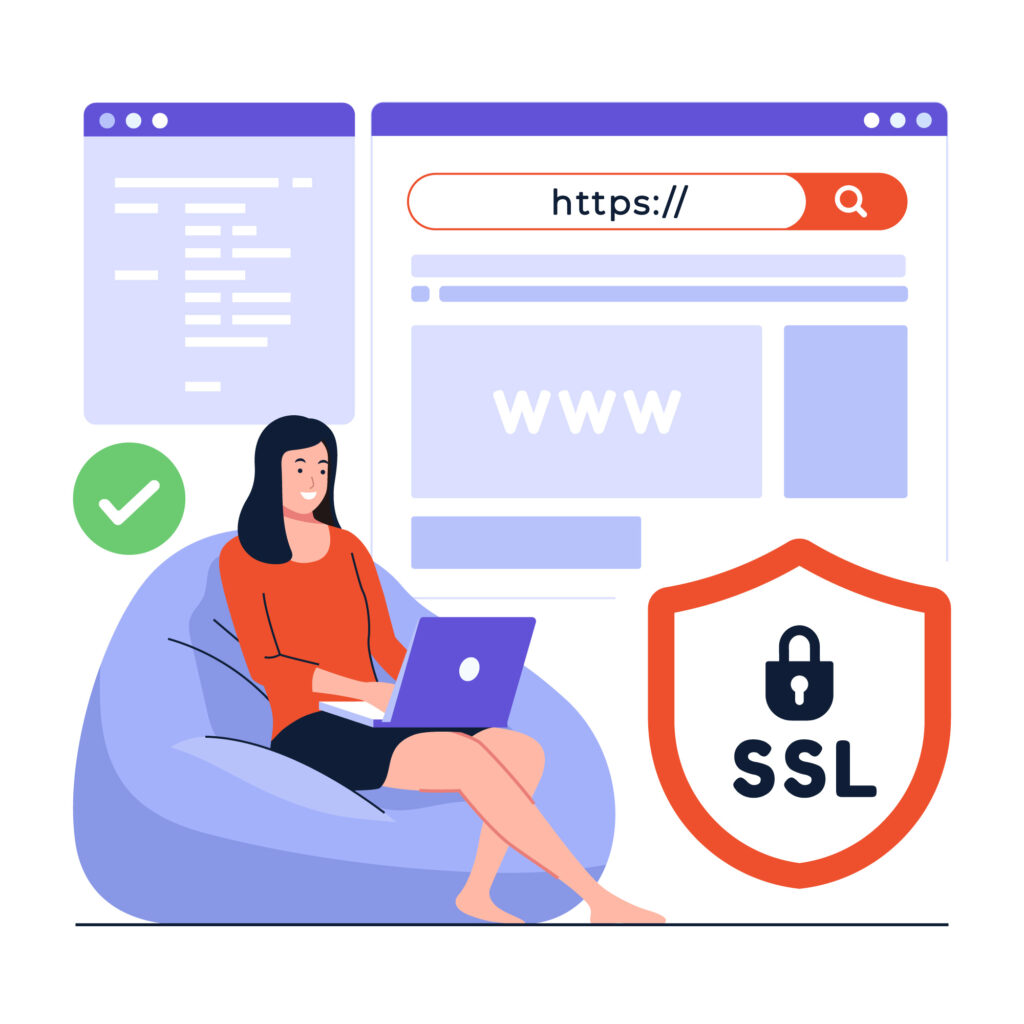
Use SSL and Encrypt Website Data
Unencrypted websites are vulnerable to data interception and security risks. Without HTTPS, sensitive data like login details can be exposed. Install an SSL certificate to encrypt data between your site and users. This improves website security, builds trust, and also supports better search rankings.
Advanced WordPress Security Tips to Prevent Attacks
Basic security is not enough to protect your website from modern threats. Advanced security measures help you block unauthorized access, reduce vulnerabilities, and protect your site from attacks such as malware injection and brute-force attempts.
Disable File Editing and PHP Execution
Hackers often exploit file editing and PHP execution to inject malicious code into your website. Allowing file edits from the dashboard or executing scripts in open directories increases security risks. Disable file editing in WordPress and restrict PHP execution in sensitive folders, such as the uploads folder. This prevents attackers from modifying files or running harmful scripts even if access is compromised.
Secure Login Access and Prevent Brute Force Attacks
Login pages are the most common targets for brute-force attacks. Weak access control makes it easier for attackers to guess credentials and gain entry. Limit login attempts, enable CAPTCHA, and use two-factor authentication to secure access. Restrict login URLs and allow only trusted IPs to reduce unauthorized access attempts.
Restrict Access and Use Firewall Protection
Unrestricted access to admin areas and sensitive files increases the risk of threats. Attackers often scan websites for open entry points and vulnerabilities. Use a web application firewall (WAF) to block malicious traffic before it reaches your site. Restrict access to admin panels, disable directory indexing, and protect critical URLs to reduce risk.
Strengthen Database and Backend Security
Default database settings make your website predictable and easier to target. Hackers often exploit known structures to carry out attacks such as SQL injection. Change the default database prefix and secure backend configurations to reduce predictability. This adds an extra layer of protection, making it harder for attackers to exploit your database.
Best WordPress Security Plugins to Protect Your Website
Security plugins help protect your website from malware, unauthorized access, and security vulnerabilities with minimal setup. They automate critical tasks like login protection, monitoring, and malware scanning to keep your site secure and stable.
- Wordfence Security: Includes firewall protection, malware scanning, and login security to block threats in real time and protect your website from attacks.
- Sucuri Security: Offers a website firewall, malware detection, and cleanup services while also improving performance and site reliability.
- Solid Security (iThemes Security): Helps secure login pages, enforce strong passwords, and prevent brute force attacks with advanced security settings.
- All In One WP Security & Firewall: A beginner-friendly plugin with features like login lockdown, file protection, and firewall rules to improve website safety.
- MalCare Security: Provides automatic malware scanning and one-click cleanup without affecting website performance.
- Jetpack Security: Provides basic protection features, including backups, downtime monitoring, and brute-force attack prevention.
Using the right combination of these plugins helps you protect your website, monitor threats, and maintain long-term security without manual effort.
Read: Common WordPress Errors and How Professionals Support Agencies Can Help You Fix Them
What to Do if Your WordPress Website is Hacked?
If your website is hacked, act quickly to reduce damage, protect users, and restore your site safely. Focus on these key steps to regain control and secure your website.
- Identify and Confirm the Issue: Check for unusual activity like redirects, spam content, slow performance, or unknown plugins. Use a security plugin to scan for malware and detect vulnerabilities.
- Secure Access and Remove Unauthorized Users: Review all user accounts, remove unknown admins, and reset all passwords, including wp-admin, database, and hosting credentials.
- Put Your Site in Maintenance Mode: Temporarily disable access to prevent further damage and protect visitors from malicious content.
- Update and Restore Your Website: Update WordPress core, plugins, and themes, and restore a clean backup if available to quickly recover your site.
- Scan and Remove Malware: Run a full security scan to identify and remove infected files, clean your website, and eliminate threats.
- Strengthen Security to Prevent Future Attacks: Enable firewall protection, two-factor authentication, and regular monitoring to block threats and maintain website security.
Conclusion
Securing your WordPress website is not a one-time task but an ongoing responsibility. Hackers often target vulnerable websites with outdated plugins or weak passwords, underscoring the importance of prevention for long-term protection.
By taking proactive steps such as hardening your WP config file, disabling file editing in WordPress, and using the best WP security plugins, you can significantly reduce risks. Installing reputable security plugins, monitoring activity, and protecting the WordPress login screen are simple yet effective ways to stay ahead of cyber threats.
Even if hacked WordPress sites can be restored, prevention saves time, money, and peace of mind. Every WordPress site owner should treat security as a priority, not an afterthought. By consistently applying these strategies, you ensure your website remains safe, reliable, and trustworthy for visitors.
FAQs About WordPress Security
How can I secure my WordPress wp-config.php file?
The wp-config.php file contains critical database information and must be protected. You can move it one directory above the root, restrict file permissions, and disable file editing in WordPress to reduce the chances of attackers modifying it.
Should I change my default WordPress login URL?
Yes. Changing your default WordPress login URL from wp-login to wp-admin helps protect against brute-force attacks. Bots often target the default login screen, so customizing the login URL adds an extra layer of security.
Why should I disable file editing in WordPress?
Disabling file editing in WordPress prevents hackers from injecting malicious code into your core files, plugins, or themes through the built-in file editor. You can disable file editing by adding a line of code in the wp-config.php file.
What should I do if my WordPress website gets hacked?
If your site is hacked, identify the issue, scan for malware, and restore a clean backup if available. To prevent future hacks, change all login credentials, install a reputable security plugin, and strengthen file permissions.
How can I disable file editing in WordPress for better security?
WordPress allows admins to edit theme and plugin files directly from the dashboard. While convenient, this feature makes your site vulnerable if hackers gain access. You can disable file editing by adding define(‘DISALLOW_FILE_EDIT’, true); to your wp-config.php file. This security measure prevents attackers from injecting malicious code into your core files.


